SSH behind a FIDO2 key — and a console with an AI assistant
The SSH port is closed to everyone until you touch your key. Once it is open, you work in a console that types saved passwords by itself, keeps your frequent commands one click away and suggests the next ones: the AI assistant turns a task into commands and, with your permission, reads what the terminal shows.
Since version 1.24. The console is part of the client, the free version included.
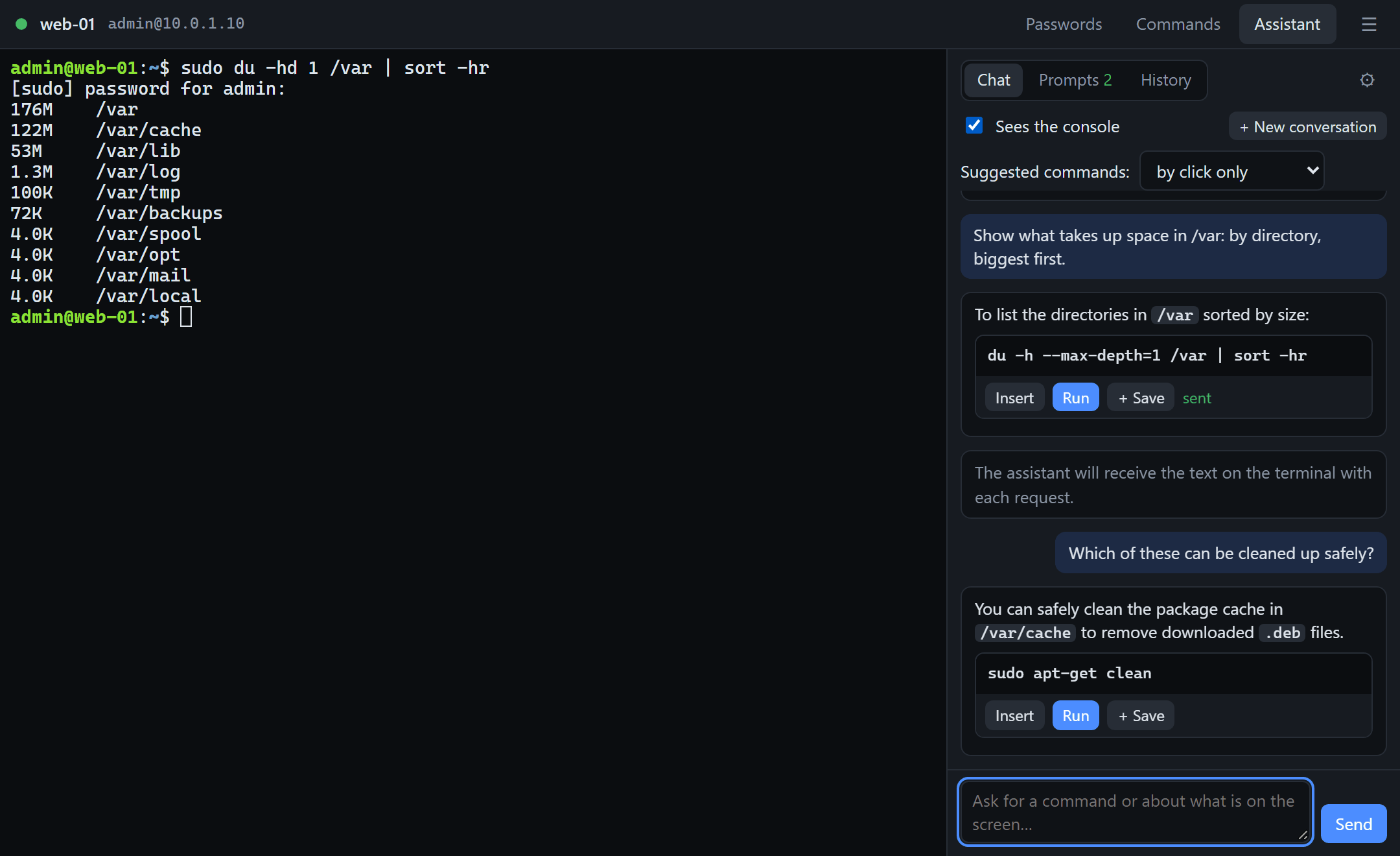
The SSH port stays closed until the key
The gate on Linux closes port 22 (and any other TCP port) exactly as it closes RDP. Confirm with a FIDO2 key or a one-time code, and the port opens for 90 seconds and only to your address. Scanners and password guessing see a closed port.
A console that remembers passwords and commands
The SSH console tile opens a terminal with a side panel. The sudo password is typed by a click, or by itself when its prompt appears; frequent commands run from a list, per server or shared by all sessions.
An AI assistant right in the console
Describe the task in words and get commands with Insert and Run buttons. It works with Claude and with any OpenAI-compatible server, including a local model inside your own network.
From the click to the shell prompt
The same confirmation that opens RDP opens SSH.
- A click on the tile. SSH sessions have a tab of their own in the client, with compact tiles.
- A touch of the key. The client asks the gate for confirmation: a FIDO2 key with a PIN or a fingerprint, Windows Hello, or a one-time code if the gate works in the code mode.
- The port opens to you only. The gate opens the SSH port to the address the confirmation came from, for 90 seconds: enough to start the connection. An established session lives on; a new one needs the key again.
- The console starts ssh. It is the system's own
ssh: your keys,ssh-agentand~/.ssh/configwork as before.
The AI assistant: from a task to a command
The assistant lives in the console's side panel and knows which machine you are connected to and as which user. The model is your choice.
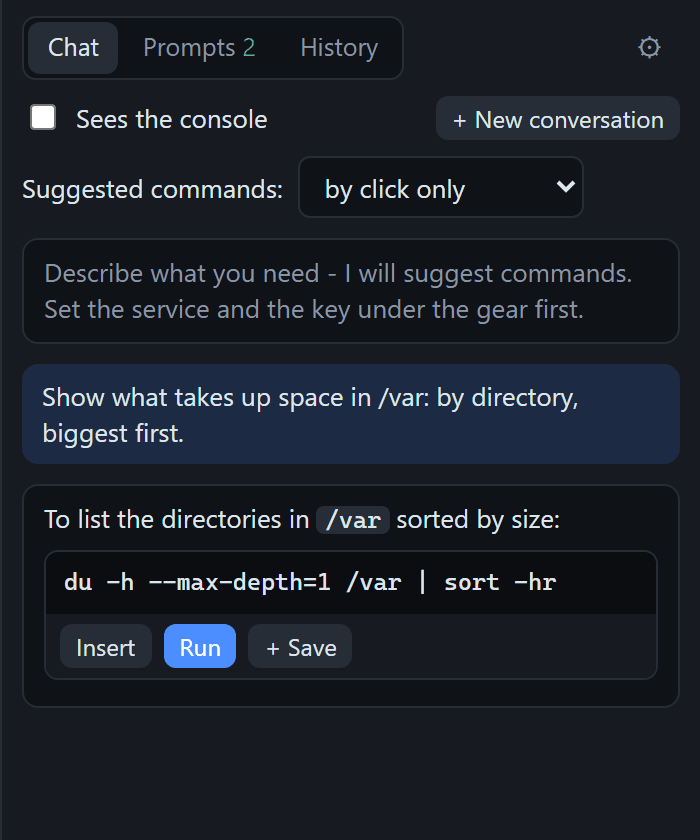
Describe the task, get a command
Every suggested command comes as a block of its own with buttons: “Insert” types it into the terminal without Enter, “Run” executes it, “+ Save” keeps it in your list of commands.
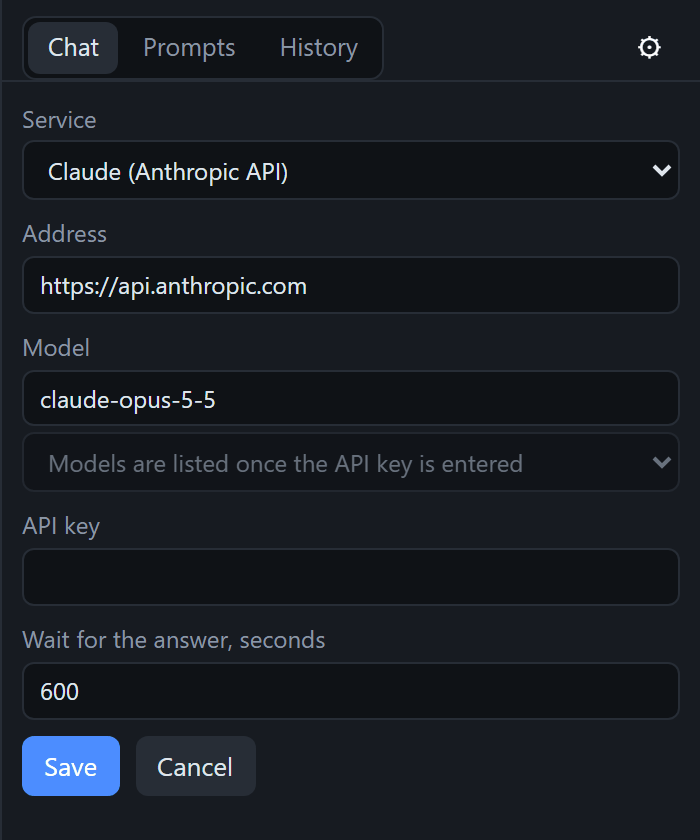
Claude with an API key
Enter an Anthropic API key and the assistant is Claude. The address and the model are already filled in; the list of models appears once the key is entered.
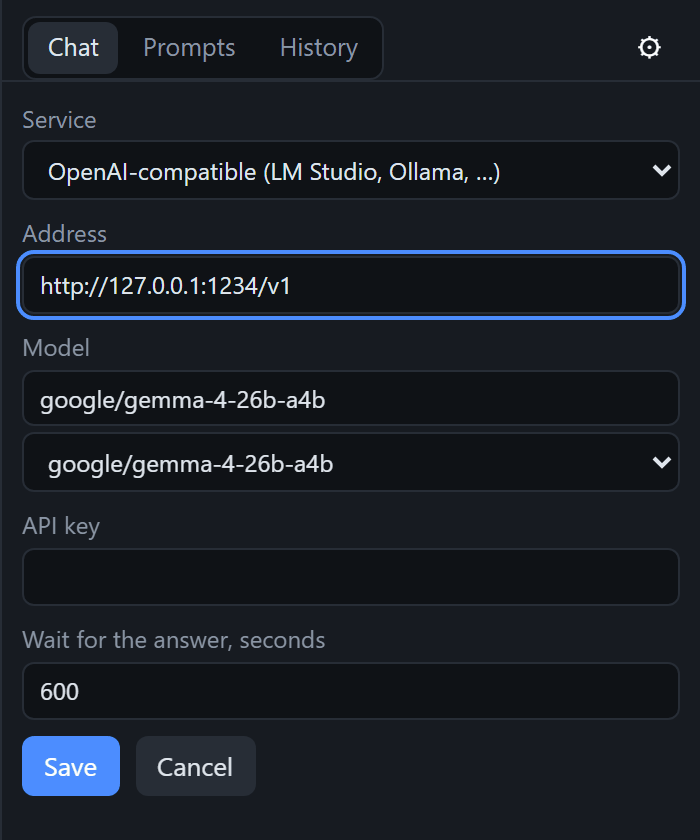
Or your own model, inside your network
Any OpenAI-compatible server: LM Studio, Ollama, a gateway of your own. The console asks the server for its models itself. With a local model neither your questions nor the terminal output leave your network.
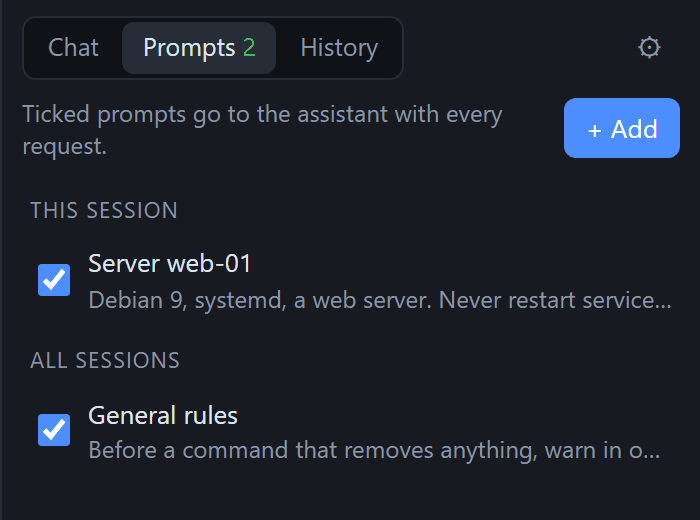
Prompts: describe the server once
Standing notes for the assistant: which system it is, what is installed, what must not be touched. Ticked prompts go to the model with every question, for this session or for all of them.
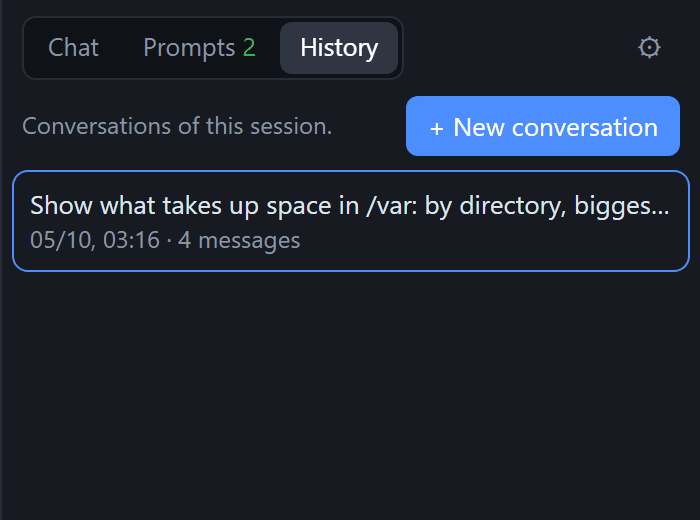
Conversation history
Conversations are kept per session: open an earlier one and continue it, or start a new one. Opening an old conversation types nothing into the terminal.
What the assistant sees and what it never sees
- The terminal text: only while “Sees the console” is ticked. Then the last 200 lines of the screen go with each question. The ban is enforced by the program itself, not by the panel's page.
- Passwords: never. The program types them, the terminal does not print them, and they do not get into the text sent to the model.
- The API key is stored encrypted (DPAPI on Windows, the desktop keyring on Linux) and is sent only to the address it was saved for.
- Requests go straight from your computer to the address you entered. They do not pass through our servers.
You decide who presses Enter
- By click only (the default): the assistant suggests, you insert or run.
- Insert the first one: the first suggested command lands on the command line, Enter is yours.
- Run the first one: the first command is executed at once. The console warns about this mode when you switch it on.
The assistant is instructed not to open with a destructive command and to warn in one line before a command that removes data, restarts a service or changes access. It is still a model: read a command before you run it.
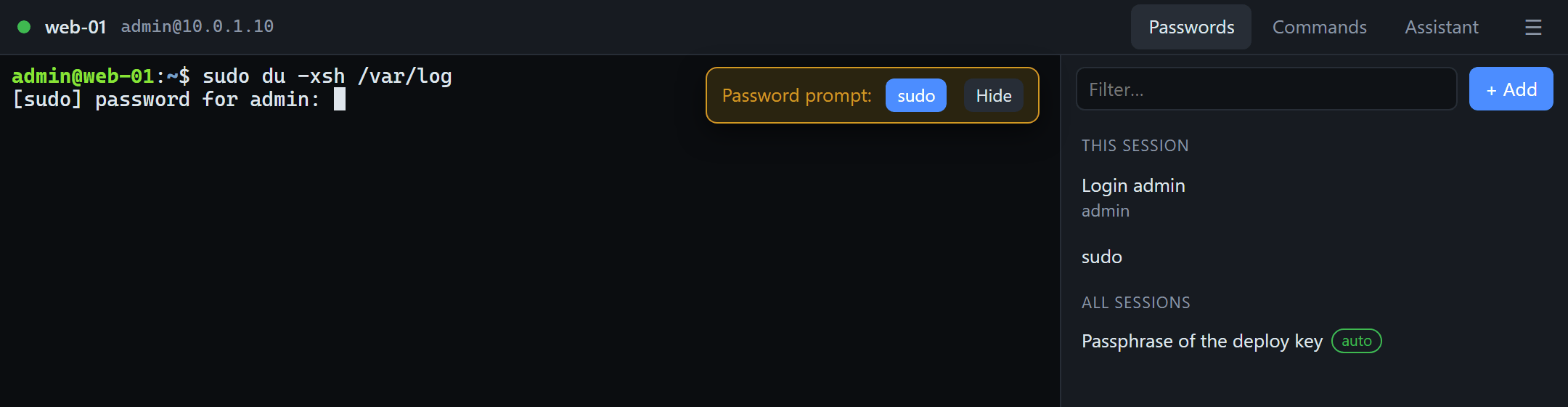
Passwords type themselves
Like a password manager, but inside the terminal.
- A record answers its own prompt. Give it a part of the line, for example
[sudo] password, and the console offers the record as soon as the terminal prints that prompt. - “Type it by itself”: the record answers its prompt without a click, but not more often than once in 15 seconds, so a wrong password is never typed three times in a row.
- Login passwords and key passphrases too:
Enter passphrase for key…is recognised as a password prompt. - Stored by the system, not by us: DPAPI of the current user on Windows, the desktop keyring on Linux. The panel's page never receives a password: it names the record, the program types it.
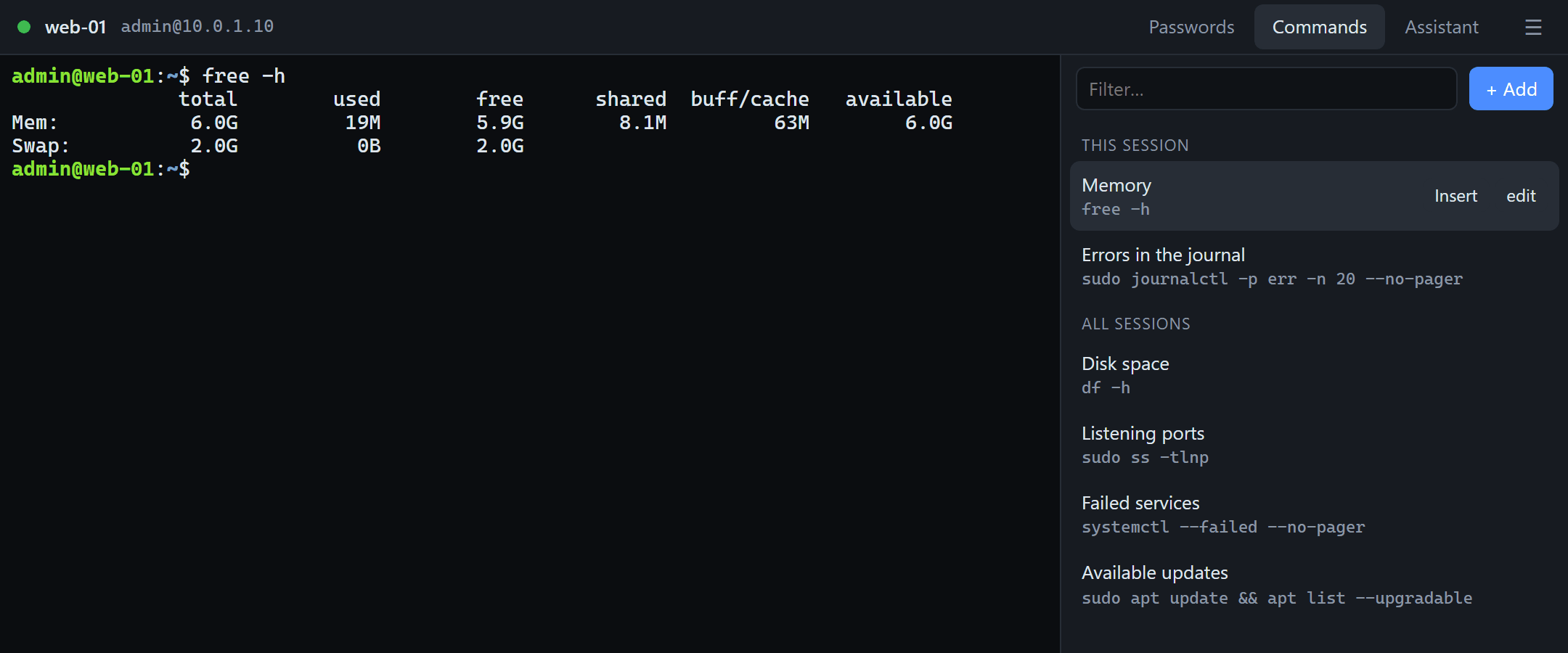
Commands one click away
Frequent commands by a click, not from the shell history.
- A click runs the command; “Insert” types it without Enter, so you can add arguments.
- Per server and shared: commands of this session come first, the rest are common to all sessions.
- Multi-line commands are fine, and a good command from the assistant is kept with “+ Save”.
In the client: an SSH tab and session settings
SSH servers live next to the desktops, on a tab of their own.
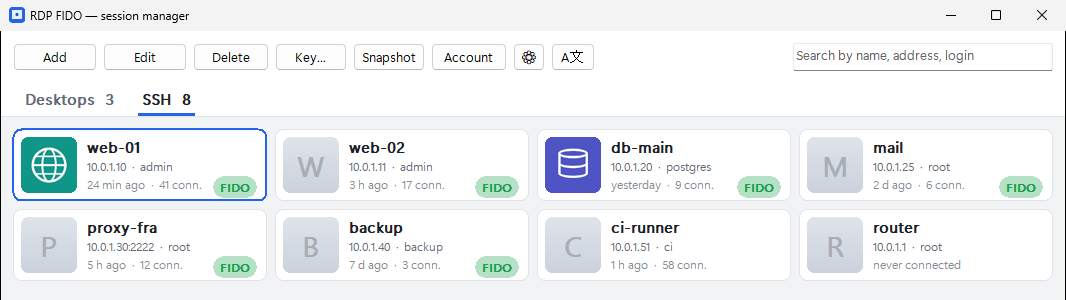
- The SSH tab with compact tiles: name, address, user, when you last connected. The Tab key switches between it and the desktops.
- A picture of your own for a tile (PNG, JPEG, BMP, GIF, ICO), so the right server is found at a glance.
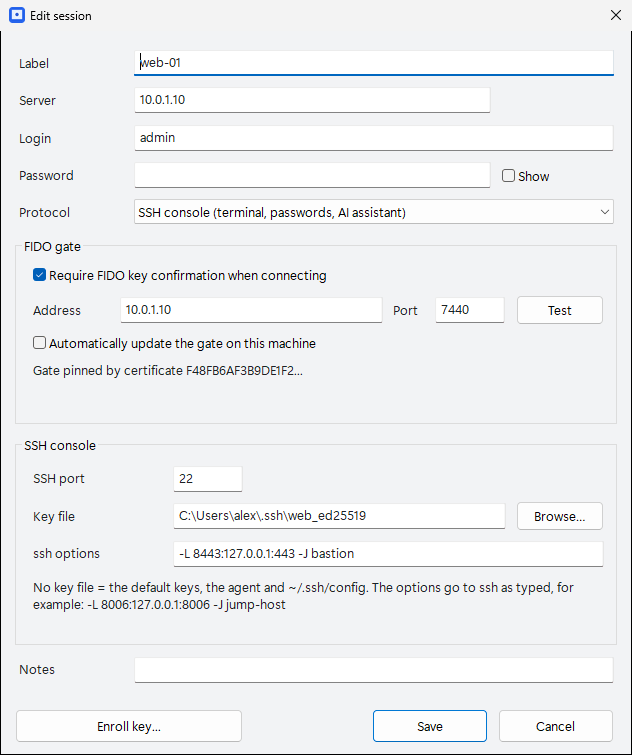
- SSH port, key file and ssh options in the session: the options go to ssh as typed, for example port forwarding
-Lor a jump host-J. - No separate download: on Windows the console is built into the client and arrives with its update; on Linux it is the
rdpfido consolecommand of the client package.
The gate: one command on the server
The RDP FIDO gate for Linux closes extra TCP ports behind the same key: SSH, a Proxmox web console, an admin panel.
On the server
# close SSH; several ports: separate them with spaces$ sudo rdpfido-gate ports add 22
# what is closed now$ sudo rdpfido-gate ports
# put the port back to normal$ sudo rdpfido-gate ports remove 22
From a Linux client
# key → the ports open for the window$ rdpfido open web-01
# the same, then ssh to the session's host$ rdpfido ssh web-01
# the same in the SSH console window$ rdpfido console web-01
- Packages for Ubuntu, Debian, Astra Linux, RED OS and ALT Linux (deb and rpm), and an archive with an installer for any other distribution.
- Up to 16 ports. Connections that are already open are not dropped, so port 22 can be closed from within an SSH session.
- You cannot lock yourself out by accident: until the first key is enrolled the ports stay open, and
rdpfido-gate unlockon the machine's own console is the emergency exit. - The window limits only the start of a connection. A session established inside the window lives on after it ends.
Getting started
- On the server (Linux): install the gate package, run
sudo rdpfido-gate setup, thensudo rdpfido-gate ports add 22. - On your computer: install the RDP FIDO client, version 1.24.1 or newer, and enroll your key with the code the gate has printed.
- Add a session: “Add” on the SSH tab: the server, the login, the “SSH console” protocol, the gate's address.
- The assistant: the “Assistant” tab, then the gear: Claude with an API key, or the address of your own server.
What is not there yet
- Extra ports are closed by the gate on Linux. The gate on Windows protects RDP only for now.
- Through a cloud hub (rdpfido-cloud) only RDP goes; SSH needs a direct connection to the gate.
- The graphical client for Linux has no console tile: the console is started with
rdpfido console, and in the current Linux packages the model name is typed by hand. - No file transfer and no tabs with several terminals in one console window.
Questions and answers
Does the AI assistant see my passwords?
No. Passwords are typed by the program itself, the terminal does not print them, the panel's page never receives them, and they do not get into the text sent to the model. The assistant receives the terminal text only while “Sees the console” is ticked.
Can I use a local model, without any cloud?
Yes. Any OpenAI-compatible server will do: LM Studio, Ollama, a gateway of your own. Requests go from your computer straight to the address you entered, so with a model inside your network nothing leaves it.
Which models are supported?
Claude through the Anthropic API (an API key is needed) and any model behind an OpenAI-compatible API. Once the address is entered, the console shows the models the server has; the name can also be typed by hand.
Can the assistant run commands by itself?
Not by default: commands are inserted or run by your click only. There are two more modes, “insert the first one” and “run the first one”; switch the second on only when you trust both the model and the task.
Do I need a hardware key?
A FIDO2 key (YubiKey and others) or Windows Hello will do. If there are no keys, the gate can work in the one-time code mode with an authenticator app.
Can I use the console without the gate?
Yes. A session without a gate is a plain SSH console with passwords, commands and the assistant. The gate adds the main thing: a port that is closed to everyone else.
Is it paid?
The console is part of the client, the free version included (up to 10 saved sessions). Pro, a one-time payment, removes the session limit and the ads. The model is paid for separately to its provider, or costs nothing if it is your own.
Which systems does it run on?
The client with the console: Windows 10 and 11 (it uses the system's OpenSSH and WebView2) and Linux. The gate that closes SSH: Linux, with packages for Ubuntu, Debian, Astra Linux, RED OS and ALT Linux.
Close SSH behind the key, and work in a console that helps
The free version has the gate, the client and the console. The assistant works with the model you choose.